Using ISOtherapist for your practice
Match each caller to the right clinician on your own team, record who you referred, and see how your practice is really being used. The screenshots below use made-up demo data.
Find your team tools
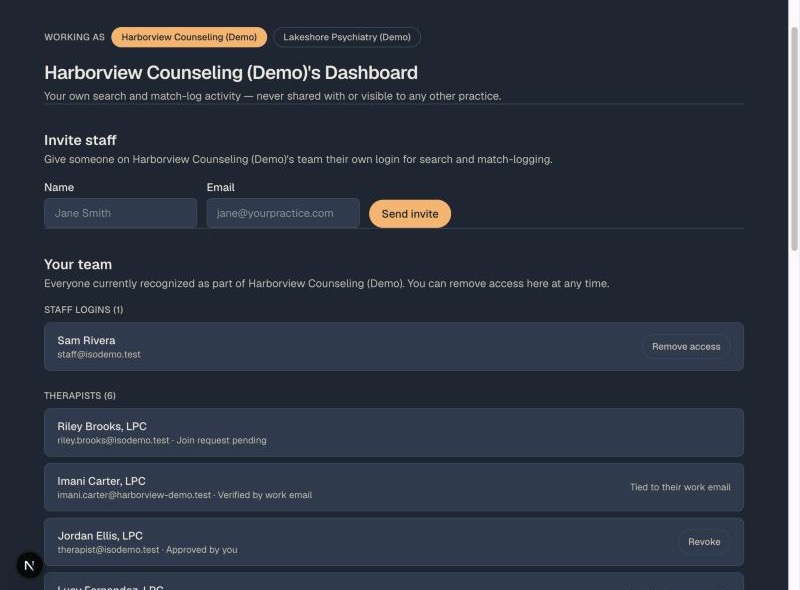
Once your practice is claimed, log in and use Team tools in the top menu. Your team dashboard is the home base: it shows your clinicians and who has joined, lets you invite intake staff, and shows your search and match activity.
If you run more than one practice or organization, a "Working as" switcher at the top of the page changes which one you are looking at.
Search your own clinicians
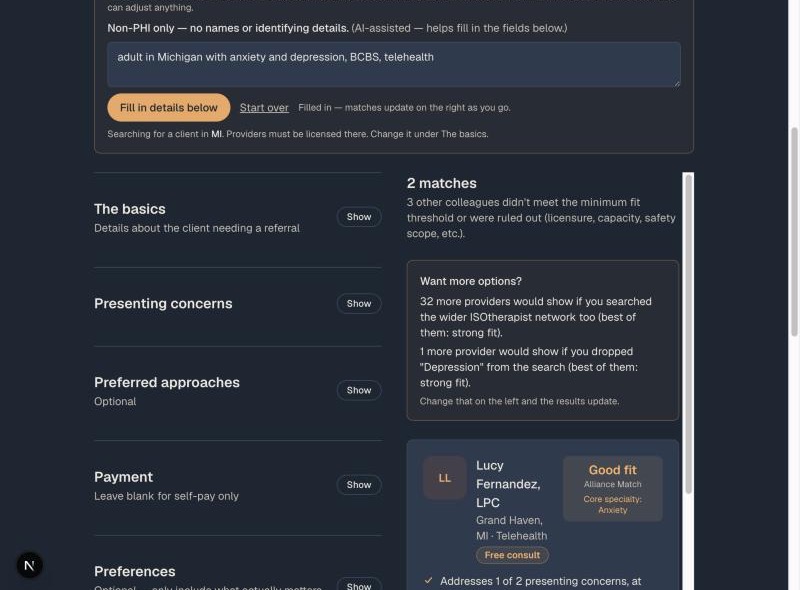
Open Find a therapist and describe what the caller needs. You can type or paste it like a quick note ("35yo woman, anxiety, Aetna, evenings") and choose Fill in details, or fill the form yourself. Results update as you go.
By default you only see clinicians at your own practice, ranked by fit, with the reasons. Each card shows a fit label (Excellent, Strong, Good, or Possible), shaded so that darker means a stronger fit, and a line on how deep the clinician goes on the main concern. Anyone who is not a credible fit for the search is not shown. If you only see a few results, a note tells you which requirement is holding results back, and adding detail usually helps.
If the caller has more than one concern, say which one is the main one. You can also say how soon they need to start, mark anything that is a must-have, or pick a style with one click. Pasting a different caller over the old description starts a fresh search, and Start over clears everything.
Know who you want already? Use Find by name at the top to pull up a specific clinician.
Search your prescribers too
If your practice has prescribers on the team, choose Find a prescriber in the top menu. It searches them the same way, including whether the caller is likely to need a controlled medication and how soon they need to start. Recording referrals, and looking beyond the practice, work exactly as they do for therapists.
Record who you referred
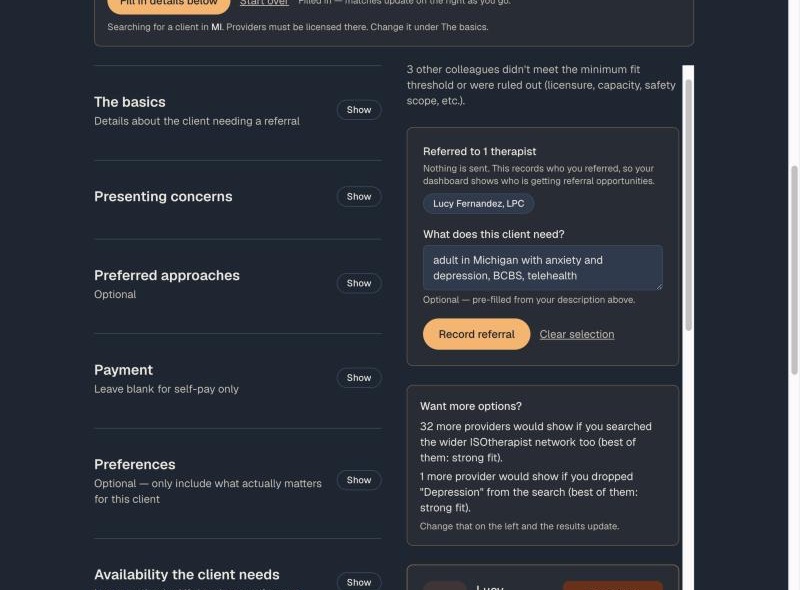
Choose + Mark as referred on one or more clinicians, add an optional note (no names or identifying details), and choose Record referral. Nothing is sent to the clinician and nothing goes to the caller. You still make the referral the way you always do (email and your intake form). This is only your record, and it is what powers your dashboard.
You can also record a referral after the fact, such as after a voicemail or email.
Look beyond your practice when you need to
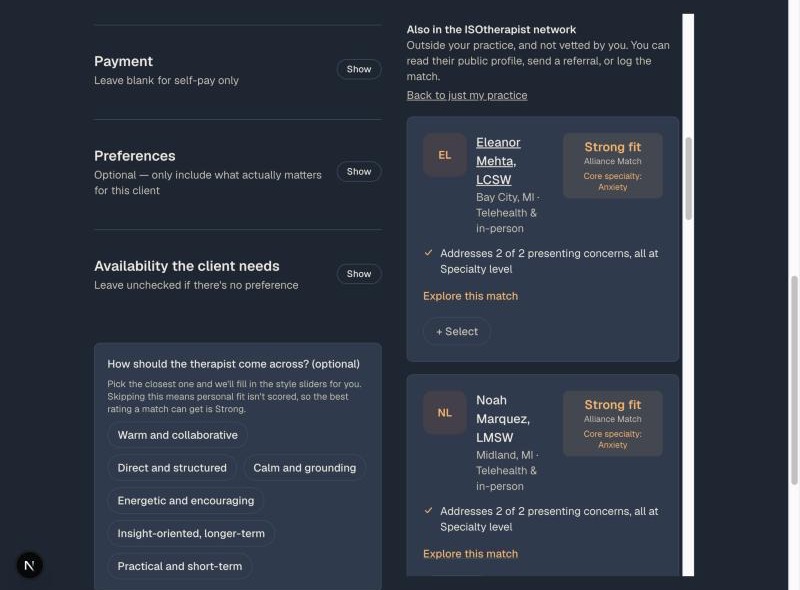
If nobody on your team fits, choose Search beyond our practice. A separate section appears, labeled "Also in the ISOtherapist network," showing providers outside your practice who match. They are not vetted by you, and you see only their public profile. Choose Back to just my practice to hide them again.
Choose + Select on up to five of them and then Send referral to email each one. They see it came from your practice, and it is added to your referral history. Your own clinicians are never emailed, only recorded. You can also just record the referral, or open their public profile to get in touch yourself.
Read your dashboard
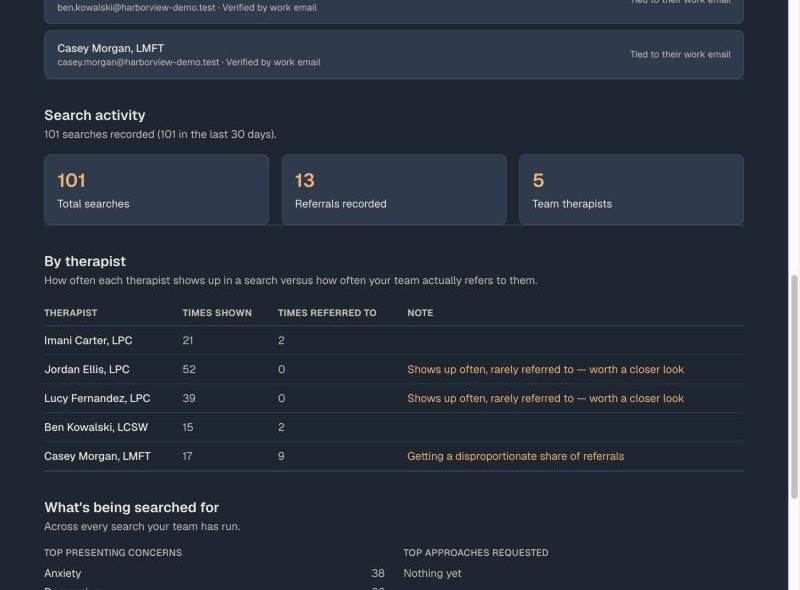
Your dashboard shows how many searches your team ran, how many referrals you recorded, and, for each clinician, how often they appear in a search versus how often you refer to them.
Notes appear when something stands out: a clinician who shows up often but is rarely referred to (worth a closer look at their profile or availability) or one who gets a disproportionate share. Below that you can see which concerns and approaches your callers ask for most, which is useful for hiring and training.
Invite your providers
On the team dashboard, use Invite your providers and paste your clinicians' email addresses, up to 50 at a time. Someone who already has an ISOtherapist account accepts in one click. Anyone else gets a link to create a free practice-only profile: the same profile every provider fills in, but findable by your practice only. It is not shown to the wider network unless they choose full membership later. As each person finishes their profile, they appear in your searches and on your roster.
Invite your intake staff
On the team dashboard, use Invite staff with a name and email. They get their own login for search and recording referrals only. There is no profile and no listing. Staff land directly on the search; owners land on the dashboard. You can remove someone's access at any time without losing the referral history they recorded.
Good to know
- Clinicians join your roster by your invitation, by signing up with your practice email, or by your approval from the team dashboard.
- Your numbers are yours. They are never shown to any other practice.
- Recently confirmed openings and a good track record nudge the order a little between equally good fits, so your recommendations naturally rotate across the team.
Questions? Use Suggest an improvement at the bottom of any page. Looking for the guide for individual providers? It is here.